
Adding your child's profile
How to add your child to SpektraBot with their details, SEND needs, and support network.
Adding your child's profile helps SpektraBot give you advice that fits their situation. The more you share, the more relevant the support becomes. You do not have to fill in everything straight away. You can come back and add more at any time.
The form has three steps: the basics, about their SEND, and their support network.
Step 1: The basics
- Name: your child's first name or a nickname. SpektraBot will use this in conversations.
- Date of birth: helps SpektraBot think about age-specific transitions, like moving from primary to secondary school or post-16 planning.
- School: start typing and choose from the list. SpektraBot uses this to find your local authority's policies and your school's SEND information where it is available.
- Home postcode: if your child's school is in a different council area to your home, SpektraBot needs your home postcode. Your home council is legally responsible for your child's EHCP, transport and social care, not the school's council.
Only your child's name is required. Everything else is optional but helps SpektraBot give better answers.
Step 2: About their SEND
- SEND diagnosis: any diagnoses your child has, such as autism, ADHD, dyslexia, or speech and language difficulties. You can add more than one. SpektraBot uses this to reference condition-specific strategies.
- Year group: from Reception through to Year 13. This matters for transition planning, curriculum expectations, and age-appropriate provision.
- EHCP status: where your child is in the EHCP process, if they are in it at all. Many children with SEND are supported by their school without a plan, so 'None' is a common and perfectly normal answer. The options are:
- None (no EHCP)
- Requesting (you have asked for an assessment)
- Assessing (the assessment is underway)
- Draft received (you have a draft plan to review)
- Finalised (the plan is in place)
- Annual review (the plan is being reviewed)
- Ceased (the plan has ended)
- Refused (the local authority refused to assess)
- Appealing (you are appealing a decision)
- Key needs: pick from the list the areas where your child needs the most support. For example, communication, social interaction, sensory processing, or behaviour. You can select as many as apply.
You do not need a diagnosis to use SpektraBot. Many children receive SEN Support at school without a formal diagnosis. SpektraBot can help whatever stage you are at.
Step 3: Support network
- Current provision: what support your child already gets. For example, speech therapy, 1:1 teaching assistant, small group reading, or occupational therapy. This helps SpektraBot spot gaps and suggest next steps.
- SENCO name: the name of the Special Educational Needs Coordinator at your child's school. SpektraBot uses this when helping you draft letters or prepare for meetings.
- Key worker / LA caseworker: the name of your local authority caseworker, if you have one. Useful for correspondence and tracking who is responsible for decisions about your child's EHCP.
- Notes: anything else that is important. For example, 'we are mid-assessment', 'appealing the LA's refusal', or 'child is being home educated'. This gives SpektraBot extra context.
Adding more than one child
You can add profiles for multiple children. Each child has their own profile, and SpektraBot keeps their information separate. When you start a conversation, you choose which child you are asking about.
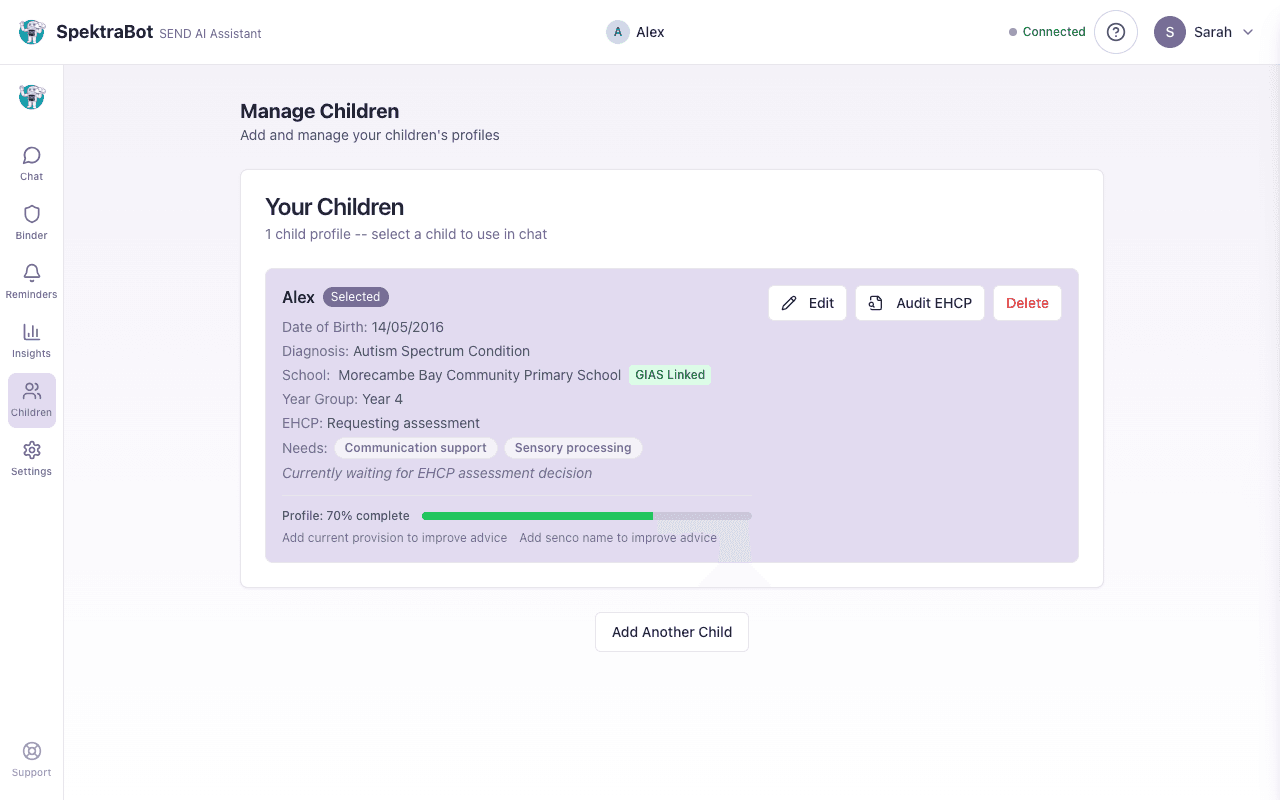
Profile completeness
SpektraBot shows you how complete your child's profile is. A fuller profile means better, more tailored advice. You can see what is missing and fill it in at any time from the Children tab.
Why each field matters
Every field you fill in helps SpektraBot in a specific way:
- Your child's school lets SpektraBot reference local authority policies and local SEND services
- Their EHCP status means SpektraBot can flag statutory deadlines and suggest the right next steps for your stage, whether that is SEN Support or any point in the EHCP process
- Key needs and provision help SpektraBot spot where support might be missing
- SENCO and key worker names are used when SpektraBot drafts letters on your behalf
Your child's privacy
Your child's information is stored securely and never shared with their school, local authority, or anyone else unless you choose to share your Insights summary. You can delete your child's profile at any time from the Children tab.
Try asking this question in a chat:
“I've just added my child's profile. What should I ask about first?”